VSTO Roadmap

I get asked the question a lot: Is VSTO going away?

With all the buzz and excitement around the new Apps for Office programming model, some Office Developers are feeling like VSTO is being abandoned. I have explained many times that it is NOT. VSTO is here to stay and your investment in solutions are safe.

And now, Michael Zlatkovsky (PM-VSTO), has confirmed – officially – the roadmap for VBA, VSTO and the new Apps for Office programming models. Specifically, let me call out an important quote:

At the same time, however, it’s important to note that all three technologies will be supported in the foreseeable future. This means that if you have an existing VBA or VSTO project, and if you’re satisfied with the capabilities, tooling, and marketability of your existing solution, you can be confident that your investments are safe.

So, keep on coding!

[UPDATE] Detect Auto-Save Multiple Versions

Giving credit where it is due is important and I thought the code Michael Zlatkovsky provided me after reading my previous post was important enough to add to my blog.

In my previous post, I pointed to a new property in Word 2013 that you can use to access whether a file is in the Auto Save or a regular save event call. You can technically write your code for Office 2010 in VS2010 and VSTO4/.NET4 and still access this property fairly easily, see the code below with Michaels comments.

Additionally, I added the Office 2007/2010 code in there as well, so it is a complete solution for Office 2007 / 2010 and 2013. Thanks Michael!

int version = int.Parse(Application.Version
        .Substring(0, Application.Version.IndexOf(".")));
if (version >= 15)
{
    // By using “dynamic”, you can get access to 
    // the IsInAutosave API even if you’re compiling 
    // against the Office 2010 PIAs. But then when 
    // the published add-in is run under Office 2013,
    // the IsInAutosave behavior is able to execute 
    // properly.
    dynamic dynamicDoc = Doc;
    if (dynamicDoc.IsInAutosave)
    {
        MessageBox.Show("Is Office 2013 autosave");
    }
    else
    {
        MessageBox.Show("If Office 2013 Normal save");
    }
}
else
{
    // This is the Office 2007 / Office 2010 logic
    object oBasic = Application.WordBasic;
    // this is where we invoke the object and
    // get the property. But we get an "object" 
    // back so be careful casting it.
    object fIsAutoSave =
         oBasic.GetType().InvokeMember(
             "IsAutosaveEvent",
             BindingFlags.GetProperty,
             null, oBasic, null);

    if (int.Parse(fIsAutoSave.ToString()) == 1)
    {
        MessageBox.Show("Is Office 2007/2010 AutoSave");
    }
    else
    {
        MessageBox.Show("Is Office 2007/2010 Normal save");
    }
}

[UPDATE] AutoRecovery Save (AutoSave) Fires off the DocumentBeforeSave Event in Word

In my previous blog post I discussed a known problem where the BeforeSave event is fired when Word does an automatic Recovery Save (also known as AutoSave). The previous entry described a way to determine whether an AutoSave is happening by using an obscure WordBasic property (added in Word 2007/2010) just for this scenario.

Well, now there is full object model support for making this determination, but ONLY in Word 2013. In a Word 2013 solution in VS2012, you can now call upon a new Document level property to determine if you are in an auto-save or not:

void Application_DocumentBeforeSave(Word.Document Doc, ref bool SaveAsUI, ref bool Cancel)
{
    // check to see if we are in
    // and AutoSave
    if (Doc.IsInAutosave)
        return;
    // your code here...
}

Since this is not backwards compatible with Word 2007 and Word 2010, it will not be much use if your project has to support multiple versions. But the good news is that it is there going forward.

Detecting if Word has a Dialog Open

There are a few scenarios where you may want to know if Word has a modal or non-modal dialog open. The following approach will used the FindWindowEx Windows API function to determine if there is a window open in Word. This list of probably far from complete, but will get you started. To add a window, use Spy++ to get the ClassName of a window that has appeared in Word.

NOTE: This technique can also work for Excel, PowerPoint and Outlook (probably) as well – although not tested in anything but Word.

[DllImport("user32.dll", SetLastError = true, CharSet = CharSet.Auto)]
static extern IntPtr FindWindowEx(IntPtr parentHandle, IntPtr childAfter, string className, string windowTitle);

[DllImport("user32.dll", SetLastError = true)]
static extern uint GetWindowThreadProcessId(IntPtr hWnd, out uint lpdwProcessId);

/// <summary>
/// Helper function to see if Word has any dialogs open
/// </summary>
/// <returns></returns>
private bool hasNonModalWindow()
{
    const string WIN_CLASS = "bosa_sdm_msword";
    const string NUI_CALSS = "NUIDialog";
    // look for known non-modal dialog types
    IntPtr hNui = GetChildWindowHandle(NUI_CALSS);
    IntPtr hWin = GetChildWindowHandle(WIN_CLASS);
    // if we get handles from above then return true
    return (hNui != IntPtr.Zero || hWin != IntPtr.Zero);
}

/// <summary>
/// Utility function using Windows API cals to loop though
/// child windows of Word and see if there are any that
/// match the passed in child class name. If there are
/// then we return the pointer to that window.
/// </summary>
/// <param name="winClass"></param>
/// <returns></returns>
private IntPtr GetChildWindowHandle(string winClass)
{
    IntPtr hWin = IntPtr.Zero;
    hWin = FindWindowEx(IntPtr.Zero, hWin, winClass, null);
    uint PID = 0;
    while (hWin != IntPtr.Zero)
    {
        // Make sure that the  window handle that we got is for the current running
        // process of Word. We do this by checking if the PID for this window and 
        // Word are same.
        GetWindowThreadProcessId(hWin, out PID);
        if (PID == Process.GetCurrentProcess().Id)
            break;
        // get next window
        hWin = FindWindowEx(IntPtr.Zero, hWin, winClass, String.Empty);
    }
    return hWin;
}

Here is an example using the function above:

// Call the function o see if the known window
// types for Word can be found and if any are found
// let the usr know....
if (hasNonModalWindow())
    MessageBox.Show("Word has a window open.");
else
    MessageBox.Show("There are no windows open in Word.");

Building a VSTO Add-in for Office 2003 and Office 2007/2010/2013

There are a lot of folks out there still running Office 2003. My advice – upgrade. However, there are many vendors who do not have the luxury of being able to tell their users to simply upgrade. What I find a lot of times is that vendors are making an add-in for each version of Office they support. They do this for many different reasons, but the biggest is because in Office 2003 they need to add menus and in Office 2007+ they need to use Ribbon. And actually, Outlook 2007 only supports menus in the Explorer, so Outlook today is the most common scenario I encounter.

Bellow is a code sample for how to load CommandBars for Office 2003 (or Outlook 2007) and use Ribbons for Office 2007, Office 2010 and Office 2013:

private const string guidTag = "A766DECF-33AB-4D25-8091-C532A478E37B";
Office.CommandBarButton btn;

/// <summary>
/// ADD-IN STARTUP
/// Load the add-in. If we are on in Office 2003 (or Outlook 2007) we 
/// add a command bar button to the Tools menu. If it is Office 2010
/// or later, we will not do anything here as the Ribbon we have
/// attched will automatically load
/// </summary>
/// <param name="sender"></param>
/// <param name="e"></param>
private void ThisAddIn_Startup(object sender, System.EventArgs e)
{
    // enable the command bar button for version 2007 or earlier
    int version = getVersion();
    if ((Application.Name.ToLower().Contains("Outlook") && version <= 12) ||
        (version <= 11))
    {
        cleanToolbar();
        Office.CommandBar cbMenu = Application.ActiveExplorer().CommandBars.ActiveMenuBar;
        Office.CommandBarPopup popTools = (Office.CommandBarPopup)cbMenu.Controls["Tools"];
        btn = (Office.CommandBarButton)popTools.Controls.Add(
                    Office.MsoControlType.msoControlButton,
                    missing, missing, 1, true);
        btn.Caption = "&Do It...";
        btn.FaceId = 258;
        btn.Tag = guidTag;
        btn.Click += new Office._CommandBarButtonEvents_ClickEventHandler(btn_Click);
    }
}

/// <summary>
/// Get the version of the application
/// </summary>
/// <returns></returns>
private int getVersion()
{
    return int.Parse(Application.Version.Substring(0, Application.Version.IndexOf(".")));
}

/// <summary>
/// Command bar button was clicked - call out on action method
/// </summary>
/// <param name="Ctrl"></param>
/// <param name="CancelDefault"></param>
void btn_Click(Office.CommandBarButton Ctrl, ref bool CancelDefault)
{
    OnAction();
}

/// <summary>
/// This is where the work is done. When the user clicks on the ribbon
/// button or the command bar button, this method is called. 
/// </summary>
public void OnAction()
{
    // your code here
}
/// <summary>
/// Remove the toolbar in Outlook 2003/2007
/// </summary>
private void cleanToolbar()
{
    Office.CommandBar cbMenu = Application.ActiveExplorer().CommandBars.ActiveMenuBar;
    Office.CommandBarPopup popTools = (Office.CommandBarPopup)cbMenu.Controls["Tools"];
    foreach (Office.CommandBarControl ctl in popTools.Controls)
    {
        if (ctl.Tag == guidTag)
        {
            ctl.Delete();
            return;
        }
    }
}

/// <summary>
/// Cleanup - only if version 2007 or earlier
/// </summary>
/// <param name="sender"></param>
/// <param name="e"></param>
private void ThisAddIn_Shutdown(object sender, System.EventArgs e)
{
    if (getVersion() <= 12)
        cleanToolbar();
}

[UPDATE] Creating Excel UDF’s in C#

UPDATE: See POC example project: http://davecra.com/2014/02/25/codeplex-loading-an-excel-udf-from-vsto/

One of the most common questions I get – and I am getting more often these days – is how to create an Excel User Defined Function (UDF) in Excel with the following criteria:

  1. Using Visual Studio and C# preferably from a Visual Studio Tools for Office (VSTO) add-in.
  2. Be able to access the Excel.Application object
  3. Have it complete register itself without administrative rights.
  4. Not use 3rd party libraries, XLL shims and/or VBA intermixed

The most common request is actually, how to get a VSTO add-in in Excel to register a UDF. Unfortunately, the answer is: you cannot. I welcome anyone who has figured this out – without using an XLL or VBA shim – to let me know how they did it from a VSTO project.

I have tried many different options via separate COM registration, a separate COM class in my project, and finally by asking this question directly to the Microsoft VSTO team. This seems to be a very popular topic on the web these days, so hopefully, they will take notice and build an interface for UDF’s in the next release of VSTO.

With that said, you can still get your VSTO add-in to load your UDF’s, albeit they must be in a separate DLL file. And in order to register on the system without Administrator rights, you will need a VSTO add-in to create an instance, connect to the class and then call the register function (a non-static register function) (see below).

As for gaining access to the Excel Application object – something you get with a VBA UDF – I find a lot of articles out there having users just creating a basic Windows DLL and registering it for Programmability. This is not really enough. To enjoy the full power of Excel in your UDF add-in, you need to register it as an add-in and to do this outside of VSTO means you need to create an COM Extensibility add-in (something gone in Visual Studio 2012).

Finally, the code below will demonstrate how to register the add-in completely in the HKEY_CURRENT_USER key of the registry so there is no need for Administrator rights to deploy the add-in. The requirement will be for the VSTO add-in to call the UDF register function.

Here is the code, with comments:

using System;
using Extensibility;
using System.Runtime.InteropServices;
using Microsoft.Win32;
using Excel = Microsoft.Office.Interop.Excel;
using System.Windows.Forms;
using System.Reflection;
using System.Threading;

namespace ExcelFunctions
{
    [GuidAttribute("FF4AF1AD-7E2A-4611-AA6F-47351FF46AFD")]
    public interface IFunctions
    {
        string RANDOMTABLE(int r, int c);
    }

    [GuidAttribute("30A29909-AF27-4814-9CBE-ED6A39A4B9A5"),
    ProgId("ExcelFunctions.Connect"),
    ClassInterface(ClassInterfaceType.AutoDual),
    ComDefaultInterface(typeof(IFunctions))]
    public class Connect : Object, Extensibility.IDTExtensibility2, IFunctions
    {
        static string NAME = "";
        /// <summary>
        /// Generates a random able in the row and cell just
        /// below the current cell - regardless of current
        /// contents
        /// </summary>
        /// <param name="r"></param>
        /// <param name="c"></param>
        /// <returns></returns>
        public string RANDOMTABLE(int r, int c)
        {
            // this gives s a reference to the exact cell with this function
            // what is importat to NOTE is that wihtout passing in a reference
            // to a Range object, I still have access to the full Excel
            // application Object Model becase we are registering this DLL
            // as an IDTExtensibility2 add-in. This interface, as you will see
            // below, provides us with a referene to the Application object
            // on the Connection...
            Excel.Range rng = (Excel.Range)Application.get_Caller(1);
            // now - this is important to note. Excel will not allow you to
            // manipluate other cells or change certain items while you are
            // evaluating a function as part of a claculation event. The
            // best way to describe this is that Excel is in "Edit Cell"
            // mode. Attempting to manipulate the cell or any other cell
            // will throw an exception - so, we spawn a thread and do the 
            // work - later...
            new Thread(() =>
            {
                // In this thread which will not execute until the current
                // calculation chain is complete, we will bild a table full
                // of random values.
                for (int rowCnt = rng.Row + 1; rowCnt <= (rng.Row + r); rowCnt++)
                {
                    for (int colCnt = rng.Column; colCnt < (rng.Column + c); colCnt++)
                    {
                        Excel.Range nextCell = ((Excel.Worksheet)rng.Parent).Cells[rowCnt, colCnt];
                        nextCell.Value2 =  new Random().Next(999).ToString();
                        Marshal.ReleaseComObject(nextCell); // clean
                    }
                }
                // important - release the range to prevent Excel hanging
                // around after the user closes it
                Marshal.FinalReleaseComObject(rng);
            }).Start();

            // simply retun a string to the active cell
            return "RANDOM TABLE";
        }

        #region IDTExtensibility2
        private static Excel.Application Application; // our ref to Excel
        private static object ThisAddIn;
        private static bool fVstoRegister = false;
        public Connect() { }

        /// <summary>
        /// We call this from VSTO so that we can get the DLL
        /// to register itself and load every time
        /// </summary>
        /// <returns></returns>
        public string Register() // exposed to VSTO
        {
            fVstoRegister = true;
            RegisterFunction(typeof(Connect));
            return NAME; // return the name of this instance
        }

        /// <summary>
        /// When we finally do connect and load in Excel we want to get the
        /// reference to the application, so that we can use the application
        /// instace in our UDF as needed
        /// </summary>
        /// <param name="application"></param>
        /// <param name="connectMode"></param>
        /// <param name="addInInst"></param>
        /// <param name="custom"></param>
        public void OnConnection(object application, Extensibility.ext_ConnectMode connectMode, object addInInst, ref System.Array custom)
        {
            // get a reference to the instance of the add-in
            Application = application as Excel.Application;
            ThisAddIn = addInInst;
        }

        /// <summary>
        /// When we disconnect - remove everything - clean up
        /// </summary>
        /// <param name="disconnectMode"></param>
        /// <param name="custom"></param>
        public void OnDisconnection(Extensibility.ext_DisconnectMode disconnectMode, ref System.Array custom) 
        {
            // clean up
            Marshal.ReleaseComObject(Application);
            Application = null;
            ThisAddIn = null;
            GC.Collect();
            GC.Collect();
            GC.WaitForPendingFinalizers();
        }
        // the following functions are required to be defined, but not needed
        public void OnAddInsUpdate(ref System.Array custom) {}
        public void OnStartupComplete(ref System.Array custom) {}
        public void OnBeginShutdown(ref System.Array custom) { }

        /// <summary>
        /// Registers the COM Automation Add-in in the CURRENT USER context
        /// and then registers it in all versions of Excel on the users system
        /// without the need of administrator permissions
        /// </summary>
        /// <param name="type"></param>
        [ComRegisterFunctionAttribute]
        public static void RegisterFunction(Type type)
        {
            string PATH = System.Reflection.Assembly.GetExecutingAssembly().GetName().CodeBase.Replace("\\", "/");
            string ASSM = Assembly.GetExecutingAssembly().FullName;
            int startPos = ASSM.ToLower().IndexOf("version=") + "version=".Length;
            int len = ASSM.ToLower().IndexOf(",", startPos) - startPos;
            string VER = ASSM.Substring(startPos, len);
            string GUID = "{" + type.GUID.ToString().ToUpper() + "}";
            NAME = type.Namespace + "." + type.Name; // global
            string BASE = @"Classes\" + NAME;
            string CLSID = @"Classes\CLSID\" + GUID;

            // open the key
            RegistryKey CU = Registry.CurrentUser.OpenSubKey("Software", true);

            // is this version registred?
            RegistryKey key = CU.OpenSubKey(CLSID + @"\InprocServer32\" + VER);
            if (key == null)
            {
                // The version of this class currently being registered DOES NOT
                // exist in the registry - so we will now register it

                // BASE KEY
                // HKEY_CURRENT_USER\CLASSES\{NAME}
                key = CU.CreateSubKey(BASE);
                key.SetValue("", NAME);

                // HKEY_CURRENT_USER\CLASSES\{NAME}\CLSID}
                key = CU.CreateSubKey(BASE + @"\CLSID");
                key.SetValue("", GUID);

                // CLSID
                // HKEY_CURRENT_USER\CLASSES\CLSID\{GUID}
                key = CU.CreateSubKey(CLSID);
                key.SetValue("", NAME);

                // HKEY_CURRENT_USER\CLASSES\CLSID\{GUID}\Implemented Categories
                key = CU.CreateSubKey(CLSID + @"\Implemented Categories").CreateSubKey("{62C8FE65-4EBB-45e7-B440-6E39B2CDBF29}");

                // HKEY_CURRENT_USER\CLASSES\CLSID\{GUID}\InProcServer32
                key = CU.CreateSubKey(CLSID + @"\InprocServer32");
                key.SetValue("", @"c:\Windows\SysWow64\mscoree.dll");
                key.SetValue("ThreadingModel", "Both");
                key.SetValue("Class", NAME);
                key.SetValue("CodeBase", PATH);
                key.SetValue("Assembly", ASSM);
                key.SetValue("RuntimeVersion", "v4.0.30319");

                // HKEY_CURRENT_USER\CLASSES\CLSID\{GUID}\InProcServer32\{VERSION}
                key = CU.CreateSubKey(CLSID + @"\InprocServer32\" + VER);
                key.SetValue("Class", NAME);
                key.SetValue("CodeBase", PATH);
                key.SetValue("Assembly", ASSM);
                key.SetValue("RuntimeVersion", "v4.0.30319");

                // HKEY_CURRENT_USER\CLASSES\CLSID\{GUID}\ProgId
                key = CU.CreateSubKey(CLSID + @"\ProgId");
                key.SetValue("", NAME);

                // HKEY_CURRENT_USER\CLASSES\CLSID\{GUID}\Progammable
                key = CU.CreateSubKey(CLSID + @"\Programmable");

                // now register the addin in the addins sub keys for each version of Office
                foreach (string keyName in Registry.CurrentUser.OpenSubKey(@"Software\Microsoft\Office\").GetSubKeyNames())
                {
                    if (IsVersionNum(keyName))
                    {
                        // and now set it to a loaded state by adding it to the options key
                        key = Registry.CurrentUser.OpenSubKey(@"Software\Microsoft\Office\" + keyName + @"\Excel\Options", true);
                        if (key != null)
                        {
                            // loop though all the names and count how many have the name OPEN#
                            int openCnt = 0;
                            foreach (string optionKeyName in key.GetValueNames())
                                if (optionKeyName.StartsWith("OPEN"))
                                    openCnt++;
                            // Add the open key
                            key.SetValue("OPEN" + (openCnt == 0 ? "" : openCnt.ToString()), "/A " + NAME);
                        }
                    }
                }
                if (!fVstoRegister)
                {
                    // all done - this just helps to assure REGASM is complete
                    // this is not needed, but is useful for troubleshooting
                    MessageBox.Show("Registered " + NAME + ".");
                }
            }
        }

        /// <summary>
        /// Unregisters the add-in, by removing all the keys
        /// </summary>
        /// <param name="type"></param>
        [ComUnregisterFunctionAttribute]
        public static void UnregisterFunction(Type type)
        {
            string GUID = "{" + type.GUID.ToString().ToUpper() + "}";
            string NAME = type.Namespace + "." + type.Name;
            string BASE = @"Classes\" + NAME;
            string CLSID = @"Classes\CLSID\" + GUID;
            // open the key
            RegistryKey CU = Registry.CurrentUser.OpenSubKey("Software", true);
            // DELETE BASE KEY
            // HKEY_CURRENT_USER\CLASSES\{NAME}
            try
            {
                CU.DeleteSubKeyTree(BASE);
            }
            catch { }
            // HKEY_CURRENT_USER\CLASSES\{NAME}\CLSID}
            try
            {
                CU.DeleteSubKeyTree(CLSID);
            }
            catch { }
            // now un-register the addin in the addins sub keys for Office
            // here we just make sure to remove it from allversions of Office
            foreach(string keyName in Registry.CurrentUser.OpenSubKey(@"Software\Microsoft\Office\").GetSubKeyNames())
            {
                if(IsVersionNum(keyName))
                {
                    RegistryKey key = Registry.CurrentUser.OpenSubKey(@"Software\Microsoft\Office\" + keyName + @"\Excel\Add-in Manager", true);
                    if (key != null)
                    {
                        try
                        {
                            key.DeleteValue(NAME);
                        }
                        catch { }
                    }
                    key = Registry.CurrentUser.OpenSubKey(@"Software\Microsoft\Office\" + keyName + @"\Excel\Options", true);
                    if (key == null)
                        continue;
                    foreach (string valueName in key.GetValueNames())
                    {
                        if (valueName.StartsWith("OPEN"))
                        {
                            if (key.GetValue(valueName).ToString().Contains(NAME))
                            {
                                try
                                {
                                    key.DeleteValue(valueName);
                                }
                                catch { }
                            }
                        }
                    }
                }
            }
            MessageBox.Show("Unregistered " + NAME + "!");
        }

        /// <summary>
        /// HELPER FUNCTION
        /// This assists is in determining if the subkey string we are passed
        /// is of the type like:
        ///     8.0
        ///     11.0
        ///     14.0
        ///     15.0
        /// </summary>
        /// <param name="s"></param>
        /// <returns></returns>
        public static bool IsVersionNum(string s)
        {
            int idx = s.IndexOf(".");
            if (idx >= 0 && s.EndsWith("0") && int.Parse(s.Substring(0, idx)) > 0)
                return true;
            else
                return false;
        }
        #endregion
    }
}

Finally, from your VSTO add-in, you will want to write code like this:

ExcelFunctions.Connect functionsAddinRef = null;
private void ThisAddIn_Startup(object sender, System.EventArgs e)
{
    // get a new reference to out UDF Project
    functionsAddinRef = new ExcelFunctions.Connect();
    // first register it
    string name = functionsAddinRef.Register();
    // then install it
    Application.AddIns.Add(name).Installed = true;
}

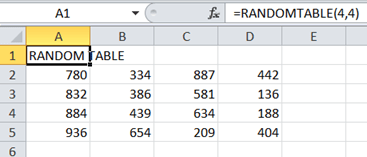
When your VSTO add-in loads, your UDF will Register and Load as well. This this example, once loaded in Excel, simply enter the following formula in an empty cell and press enter:

=RANDOMTABLE(4,4)

You will get a table like this:

image

CustomTaskPanes in a .NET Shared COM Add-in

I was working with a customer that had a requirement to create a dynamic control for a CustomTaskPane in Excel and Word. In VSTO, this is very easy as the reference object found in ThisAddIn has a CustomTaskPanes collection. From there you can .Add() a CustomTaskPane and pass it a UserForm Control you build at runtime. This is very powerful in that you can create very dynamic TaskPanes. Smile

With a COM Shared Add-in, however, this is not as easy. The main reason is that you have to directly implement the TaskPane interface Office.ICustomTaskPaneConsumer an it does not give you the nifty CustomTaskPanes collection. What it does give you is an ICTPFactory object which exposes a method called CreateCTP(). However, this method requires a registered ActiveX control CLSID name for the TaskPane control you want to appear in the pane. It will not accept a dynamically created User control. How this works is detailed here:

ICustomTaskPaneConsumer.CTPFactoryAvailable Method (Office)
http://msdn.microsoft.com/en-us/library/office/ff863874.aspx

And this article details the full methodology:

Creating Custom Task Panes in the 2007 Office System
http://msdn.microsoft.com/en-us/library/office/aa338197%28v=office.12%29.aspx

A fellow employee (http://blogs.msdn.com/b/cristib/) that also does a lot of blogging on VSTO, pointed me to a possible solution:

  • Use the method detailed in the second article
  • But create a VSTO UserForm Control and expose it as a COM Control
  • However, he suggested adding all the controls I might possibly need to the control form and show/hide them as needed. E.g. making it pseudo dynamic. But my customer needed a fully dynamic pane…

So, I took it two steps further: Hot smile

  • First, I actually simplified the control idea greatly. My exposed COM control was a basic, simple, empty control. My design was to add the control to the TaskPane and then get a reference to the base UserForm control. From there I can call an exposed property (ChildControls) and then add anything I want to it. I can attach a button and then hook to it’s click event, etc. I can build a control dynamically at runtime, or build it as a separate project at design time.
  • Next, I recreated the CustomTaskPanes collection and CustomTaskPane objects in mirror classes so working with CustomTaskPanes in a Shared Add-in was as simple as in a VSTO add-in.

First, lets look at the base control I created. You will see that I exposed it as COM Visible. After I built the project, I used REGASM to register it:

C:\Windows\Microsoft.NET\Framework\v4.0.30319\RegAsm.exe /codebase <path>\CustomTaskPaneControl.BaseControl.dll

Here is the code:

[ComVisible(true)]
[ProgId("CustomTaskPaneControl.BaseControl")]
[Guid("DD38ADAB-F63A-4F4A-AC1A-343B385DA2AF")]
public partial class BaseControl : UserControl
{
    public BaseControl()
    {
        InitializeComponent();
    }

    [ComVisible(true)]
    public ControlCollection ChildControls
    {
        get
        {
            return this.Controls;
        }
    }
}

That is it – that is all there is. It is a simple placeholder, empty shell, ready to be filled with anything you add the the ChildControls property.

Next, I created two new classes zCustomTaskPanesCollection and zCustomTaskPanes. I placed these in their own source code file and added it to the project Namespace. I also added the project reference to the base control above so I could directly cast it.

Here is the code:

/// <summary>
/// This class mirrors the Office.CustomTaskPaneCollection
/// </summary>
public class zCustomTaskPaneCollection
{
    // Public list of TaskPane items
    public List<zCustomTaskPane> Items = new List<zCustomTaskPane>();
    private Office.ICTPFactory _paneFactory;

    /// <summary>
    /// CTOR - takes the factor from the interface method
    /// </summary>
    /// <param name="CTPFactoryInst"></param>
    public zCustomTaskPaneCollection(Office.ICTPFactory CTPFactoryInst)
    {
        _paneFactory = CTPFactoryInst;
    }

    /// <summary>
    /// Adds a new TaskPane to the collection and takes a 
    /// User Form Control reference for the contents of the
    /// Control Pane
    /// </summary>
    /// <param name="control"></param>
    /// <param name="Title"></param>
    /// <returns></returns>
    public zCustomTaskPane Add(Control control, string Title)
    {
        // create a new Pane object
        zCustomTaskPane newPane = new zCustomTaskPane(control, Title, _paneFactory);
        Items.Add(newPane); // add it to the collection
        return newPane; // return a reference
    }

    /// <summary>
    /// Remove the specific pane from the list
    /// </summary>
    /// <param name="pane"></param>
    public void Remove(zCustomTaskPane pane)
    {
        Items.Remove(pane);
        pane.Dispose(); // dispose the pane
    }

    /// <summary>
    /// Get a list
    /// </summary>
    public int Count
    {
        get
        {
            return Items.Count;
        }
    }
}

/// <summary>
/// This class mirrors the Office.CustomTaskPane class 
/// </summary>
public class zCustomTaskPane
{
    private string _title = string.Empty;
    private Control _control = null;
    private Office.CustomTaskPane _taskPane;
    private BaseControl _base;
    public string Title { get { return _title; } }
    public event EventHandler VisibleChanged;

    /// <summary>
    /// Get or set the dock position of the TaskPane
    /// </summary>
    public Office.MsoCTPDockPosition DockPosition
    {
        get
        {
            return _taskPane.DockPosition;
        }
        set
        {
            _taskPane.DockPosition = value;
        }
    }

    /// <summary>
    /// Show or hide the CustomTaskPane
    /// </summary>
    public bool Visible
    {
        get
        {
            return _taskPane.Visible;
        }
        set
        {
            _taskPane.Visible = value;
        }
    }

    /// <summary>
    /// Reference to the control
    /// </summary>
    public Control Control { get { return _control; } }

    /// <summary>
    /// CTOR
    /// </summary>
    /// <param name="control"></param>
    /// <param name="Title"></param>
    /// <param name="CTPFactoryInst"></param>
    public zCustomTaskPane(Control control, string Title, Office.ICTPFactory CTPFactoryInst)
    {
        // create the taskpane control and use the factory to create a new instance of
        // our base control "CustomTaskPaneControl.BaseControl"
        _control = control;
        _title = Title;
        _taskPane = CTPFactoryInst.CreateCTP("CustomTaskPaneControl.BaseControl", Title);
        _taskPane.Width = control.Width + 2;
        _base = (BaseControl)_taskPane.ContentControl;
        _base.ChildControls.Add(control);
        _base.Height = control.Height + 2;
        // when the visibility changes fire an event
        _taskPane.VisibleStateChange += (Office.CustomTaskPane CustomTaskPaneInst) =>
            {
                VisibleChanged(this, new EventArgs());
            };
    }

    /// <summary>
    /// Dispose of the control and collect
    /// </summary>
    public void Dispose()
    {
        try
        {
            _taskPane.Visible = false;
        }
        catch { }
        try
        {
            _control.Dispose();
            _control = null;
            _base.Dispose();
            _base = null;
        }
        catch { }
        GC.Collect();
        GC.Collect();
        GC.WaitForPendingFinalizers();
    }
}

Finally, I added hooked up my Shared Add-in to use the ICustomTaskPaneConsumer interface. At that point, everything was hooked up ready to go:

public class Connect : Object, Extensibility.IDTExtensibility2, Office.ICustomTaskPaneConsumer, Office.IRibbonExtensibility
{
    public zCustomTaskPaneCollection CustomTaskPaneCollection;
    void Office.ICustomTaskPaneConsumer.CTPFactoryAvailable(Office.ICTPFactory CTPFactoryInst)
    {
        CustomTaskPaneCollection = new zCustomTaskPaneCollection(CTPFactoryInst);
    }

Now, I was able to build a fully dynamic control on a Ribbon Button click, like this:

// create a dynamic control on the fly
UserControl dynamicControl = new UserControl();
// add a button to it
Button btnTest = new Button();
btnTest.Name = "btnTest";
btnTest.Text = "Hello";
// when the user clicks the button on the TaskPane,
// say hello...
btnTest.Click +=(object sender, EventArgs e) =>
    {
        MessageBox.Show("Hello World!");
    };
// add the button to the control 
dynamicControl.Controls.Add(btnTest);
// now create the taskPane - looks exactly the same
// as how you would create one in VSTO
zCustomTaskPane myPane = CustomTaskPaneCollection.Add(dynamicControl, "My Pane");
myPane.VisibleChanged += (object sender, EventArgs e) =>
    {
        // when the taskpane is hidden, invalidate the ribbon
        // so my toggle button can toggle off
        ribbon.Invalidate();
    };
// dock to the right
myPane.DockPosition = Office.MsoCTPDockPosition.msoCTPDockPositionRight;
// show it
myPane.Visible = true;

Once fully implemented this looks and acts just like the CustomTaskPaneCollection from VSTO and is just as easy to use and allows you to create dynamic, on the fly controls. Winking smile

Getting a Unique Instance of Word

I get this question from time to time. When you need to make sure you grab your own instance of Word and not attach to the existing instance of Word. Normally, when you launch Word with a “new Word.Application()” call, you will always get your own instance of Word. However, if the running instance of Word was started with the “winword.exe /automation” switch, you will actually attach to that instance of Word. I am not sure if this is the way the application was designed or if there is some type of a defect here, but it can cause real problems when you are expecting to get your own, clean instance of Word.

The following code can be added to your project to assure you have a unique instance. You simply do something like this:

public static void Main()
{
    Word.Application myWordInst = getWordInstance();
}

What the “getWordInstance()” method does is gets the number of running Word instances in memory. It then issues a new Automation request. If the number of instances of Word does not increase after the call, it will issue another Automation call – so on and so forth until the number of running Word processes in memory increases by one. Here is the case:

/// <summary>
/// Gets a clean Word instance
/// </summary>
/// <returns></returns>
private Word.Application getWordInstance()
{
    // get the count of Word instance in memory
    int LiCnt = getWordCount();
    // try to spawn a new one
    Word.Application wdApp = new Word.Application();
    // if there were no instances or the number of instances in
    // memory now is greater, then return our instance just
    // created...
    if (LiCnt == 0 || LiCnt < getWordCount())
        return wdApp;
    else
        // otherwise, return another new instance
        return new Word.Application();
}

/// <summary>
/// Gets the number of instance of Word in memory
/// </summary>
/// <returns></returns>
private int getWordCount()
{
    int LiCnt = 0;
    //find winword.exe in memmory and count it
    foreach (Process LobjProcess in Process.GetProcesses())
        if (LobjProcess.ProcessName.ToLower().Contains("winword"))
            LiCnt++;
    return LiCnt; // return the count
}

Office File Validation Class

I work with a couple of customers that need to validate files before they are opened. Their solutions require them to be able to take specific actions if the files are password protected or corrupt before they are opened, such as not opening them. Waiting for Word to error out, prompt for a password or fail to open the file can be too late in the process…

The following code has not really been tested extensively (especially with regard to performance). It has been tested on a small subset of test files and worked. However, it may need some additional field testing.

The way it works is to create a new instance of the OfficeFileValidator Class and then Validate the file. Comments on how this is done are inline with the code…

OpenFileDialog LobjOfd = new OpenFileDialog();
if (LobjOfd.ShowDialog() == System.Windows.Forms.DialogResult.OK)
{
    OfficeFileValidator LobjValidator = new OfficeFileValidator(LobjOfd.FileName);
    switch(LobjValidator.Validate())
    {
        case OfficeFileValidator.ValidationResult.VR_CORRUPT:
            MessageBox.Show("This file appears to be corrupt: \n\n" +
                            "The part that failed is: " + LobjValidator.GetExceptionInfo.FailedPartUri + "\n\n" +
                            "The reason: " + LobjValidator.GetExceptionInfo.FailedReason);
            break;
        case OfficeFileValidator.ValidationResult.VR_VALID:
            MessageBox.Show("The is a valid Office file.");
            break;
        case OfficeFileValidator.ValidationResult.VR_ENCRYPTED:
            MessageBox.Show("This is an encrypted Office file.");
            break;
        case OfficeFileValidator.ValidationResult.VR_UNKNOWN:
            MessageBox.Show("This does not appear to be a valid Office file: \n\n\t" + LobjValidator.GetExceptionInfo.FailedReason);
            break;
        case OfficeFileValidator.ValidationResult.VR_BADEXT:
            MessageBox.Show("This is not an Office file.");
            break;
    }
}

Here is the class:

/// <summary>
/// OFFICE FILE VALIDATOR CLASS
/// 
/// This class is used to determine if any given file:
/// 1) Is a valid Office file with all parts present
/// 2) Is an encrypted/password protected Office file
/// 3) Is an corrupted file
/// 
/// In the case of corruption additional information
/// can be found in the GetExceptionInfo property
/// </summary>
public class OfficeFileValidator
{
    private const int CiBufferSize = 4096;
    public enum ValidationResult { VR_BADEXT, VR_UNKNOWN, VR_VALID, VR_ENCRYPTED, VR_CORRUPT };
    private const string CstrEncryptionSchemaUri = "http://schemas.microsoft.com/office/2006/keyEncryptor/password";
    private string MstrFilename;
    private ValidatorException MobjException = new ValidatorException("N/A");
    private string[] MobjValidExtensions = new string[] { "pptx", "pptm", "potx", "potm", 
                                                          "docx", "docm", "dotx", "dotm", 
                                                          "xlsx", "xlsm", "xltx", "xltm", "xlsb" };

    /// <summary>
    /// CTOR - takes a full path and filename
    /// </summary>
    /// <param name="PstrFilename"></param>
    public OfficeFileValidator(string PstrFilename)
    {
        MstrFilename = PstrFilename;
    }

    /// <summary>
    /// READ-ONLY PROPERTY
    /// Return the Exception that occurred during validation
    /// if the result returned is VR_CORRPUT or VR_UNKNOWN
    /// </summary>
    public ValidatorException GetExceptionInfo
    {
        get
        {
            return MobjException;
        }
    }

    /// <summary>
    /// Validate the office file and returns the result of:
    /// VR_VALID - if it is a standard, validated Office file
    /// VR_ENCRYPTED - if it is an encrypted file
    /// VR_CORRUPT - if there is something wrong with the structure of the file
    /// VR_UNKNONW - if it is not a valid Office file.
    /// </summary>
    /// <returns></returns>
    public ValidationResult Validate()
    {
        try
        {
            // first start off validating the file extension
            string LstrExt = new FileInfo(MstrFilename).Extension.ToLower().Replace(".", "");
            if (!MobjValidExtensions.Contains(LstrExt))
            {
                MobjException = new ValidatorException("The file extension is not valid.");
                return ValidationResult.VR_BADEXT;
            }

            // next start off by reading the first two bytes of the file
            char[] LobjBuffer = new char[2];
            StreamReader LobjSr = new StreamReader(MstrFilename);
            LobjSr.Read(LobjBuffer, 0, 2);
            LobjSr.Close();
            // if the first two bytes start with PK (for package), then
            // we know we have a valid Zip Package
            if (string.Concat(LobjBuffer).ToUpper() == "PK")
            {
                // now make sure all of its parts are there
                if (isStructureValid(MstrFilename))
                    return ValidationResult.VR_VALID; // default
                else
                    return ValidationResult.VR_CORRUPT;
            }
            else
            {
                // if the first two characters are not PK, then
                // we will look through the stream to see if we
                // can find the Encrypted URI

                LobjSr = new StreamReader(MstrFilename);
                LobjBuffer = new char[CiBufferSize];
                // seek back minus 4kb in the file
                LobjSr.BaseStream.Seek(LobjSr.BaseStream.Length - CiBufferSize, SeekOrigin.Current);
                LobjSr.Read(LobjBuffer, 0, CiBufferSize);
                if (string.Concat(LobjBuffer).Contains(CstrEncryptionSchemaUri))
                {
                    // Yes - we are encrypted
                    LobjSr.Close();
                    return ValidationResult.VR_ENCRYPTED; // encrypted
                }
                // if we made it here - we are not encrypted
                LobjSr.Close();
                // The problem here is that the file might be completely corrupt
                // a binary file renamed with an OpenXml extension or it is
                // another file type named as an OpenXml extension - invalid
                MobjException = new ValidatorException("File content is not recognized.");
                return ValidationResult.VR_UNKNOWN; // something else - maybe not an office file
            }
        }
        catch (Exception ex)
        {
            // somewhere above an exception occurred - we are not sure
            // what happened, so just return the exception text
            MobjException = new ValidatorException(ex.Message);
            return ValidationResult.VR_UNKNOWN; // something failed - corrupt?
        }
    }

    /// <summary>
    /// HELPER METHOD
    /// This method opens the file as a Zip Package and then
    /// validates that:
    /// 1) All parts are present
    /// 2) All parts can load a stream
    /// 3) That all XML parts are valid XML
    /// 
    /// Returns true if it is valid.
    /// </summary>
    /// <param name="PobjFilename"></param>
    /// <returns></returns>
    private bool isStructureValid(string PobjFilename)
    {
        ZipPackage LobjZip = null;
        string lastPartUri = "";
        try
        {
            // open the package in a ZIP PACKAGER
            LobjZip = (ZipPackage)Package.Open(PobjFilename, FileMode.Open, FileAccess.Read);
            // loop through all the parts
            foreach (PackagePart LobjPart in LobjZip.GetParts())
            {
                // log the uri of this part
                lastPartUri = LobjPart.Uri.OriginalString.ToLower();
                // grab the stream for the part
                Stream LobjPartStream = LobjPart.GetStream();
                // is the part an XML component?
                if (LobjPart.Uri.OriginalString.ToLower().EndsWith(".xml"))
                {
                    // load it into an XML Doc and verify that it loads
                    XmlDocument LobjPartDoc = new XmlDocument();
                    LobjPartDoc.Load(LobjPartStream);
                    LobjPartStream.Close();
                    if (LobjPartDoc.DocumentElement.OuterXml.Length == 0)
                    {
                        MobjException = new ValidatorException("Part not valid [empty].", lastPartUri);
                        LobjZip.Close();
                        return false;
                    }
                }
                else
                {
                    // we have a binary part
                    StreamReader LobjSr = new StreamReader(LobjPartStream);
                    LobjSr.ReadToEnd(); // just try to reach to the end
                    LobjSr.Close();
                }
            }
            // here and ok
            LobjZip.Close();
            return true;
        }
        catch (Exception ex)
        {
            // something bad happened above - unknown - just return the exception
            MobjException = new ValidatorException(ex.Message, lastPartUri);
            LobjZip.Close();
            return false;
        }
    }

    /// <summary>
    /// INTERNAL EXCEPTION CLASS
    /// This is the exception class that is used to determine what the
    /// failure was in the application
    /// </summary>
    public class ValidatorException
    {
        public string FailedPartUri { get; set; }
        public string FailedReason { get; set; }
        public ValidatorException(string PstrReason, string PstrLastUri)
        {
            FailedPartUri = PstrLastUri;
            FailedReason = PstrReason;
        }
        public ValidatorException(string PstrReason)
        {
            FailedPartUri = "";
            FailedReason = PstrReason;
        }

    }
}